

Adding an admin to your Facebook business page is a key step when growing your team or onboarding new social media managers. Properly managing admin access ensures the right people can help manage your page while keeping your business secure. BetaByte Online is here to guide you through the process so you can confidently assign access without mistakes.
Log into the Facebook business page you want to manage.
You can do this by logging into your personal Facebook account — as long as you already have admin access.
If you’re unable to access the page, contact the current page admin and ask them to follow these steps to add you as an admin so you’re able to manage admin access yourself.
Select your profile arrow
When you’re logged into your personal Facebook page, select the arrow next to your profile photo in the upper right corner.
Note: These instructions are for the desktop version of Facebook. On mobile, things may look slightly different.
Switch into the correct page
Select the page you’d like to manage to ensure you’re logged in as that page.
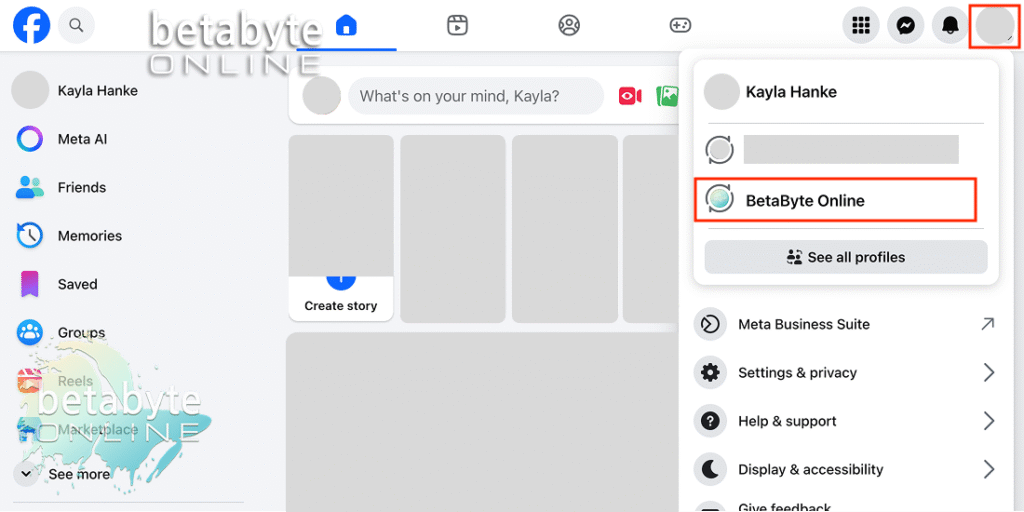
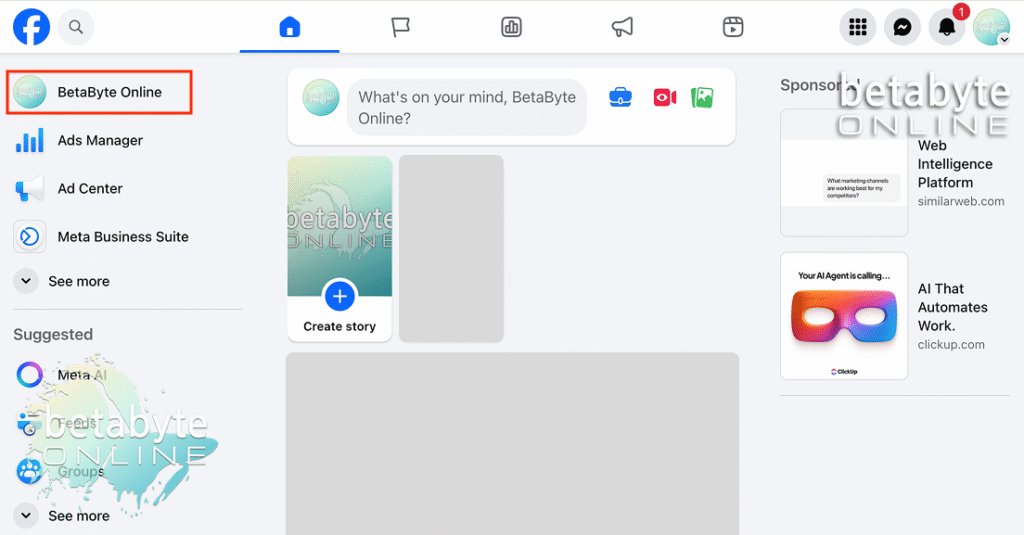
Go to the business page dashboard
Once you’re on the page, select the business page name in the upper-left corner.
Open Settings
From here, go to Manage Page > Settings.

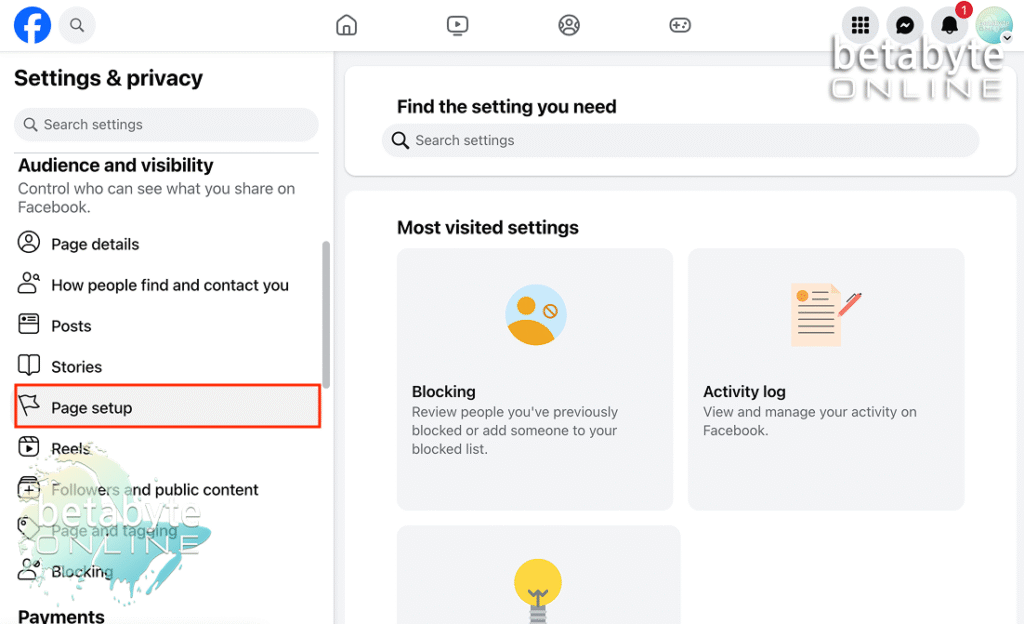
Go to Page Setup
In the left panel, scroll to Audience and Visibility, then select Page Setup.
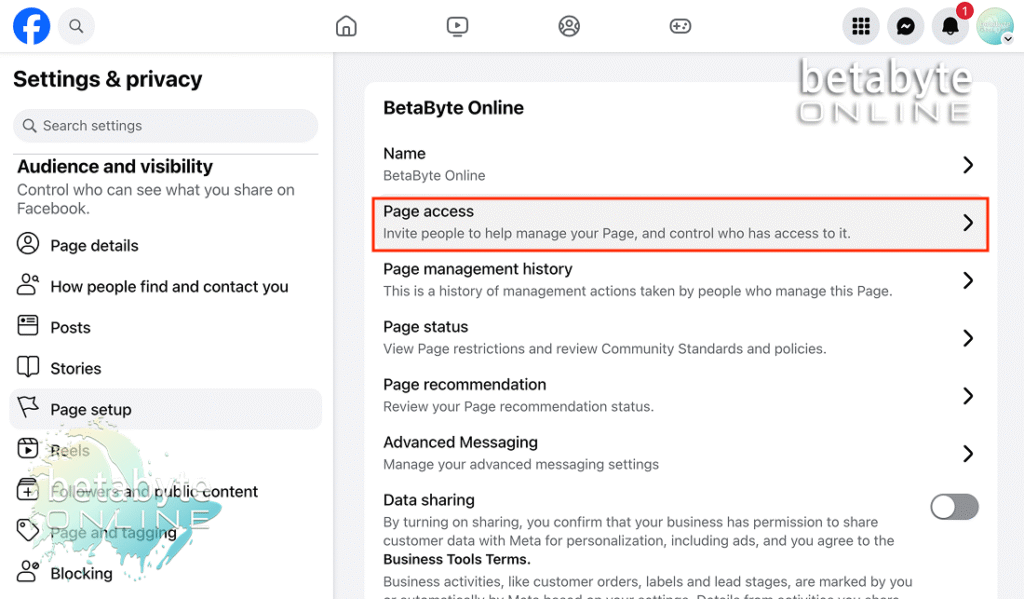
Select Page Access
This is where you can invite people to help manage your page and control who has access. This is also where you can add or remove admin access.
Add a new administrator
Under “People with Facebook Access,” select Add New.
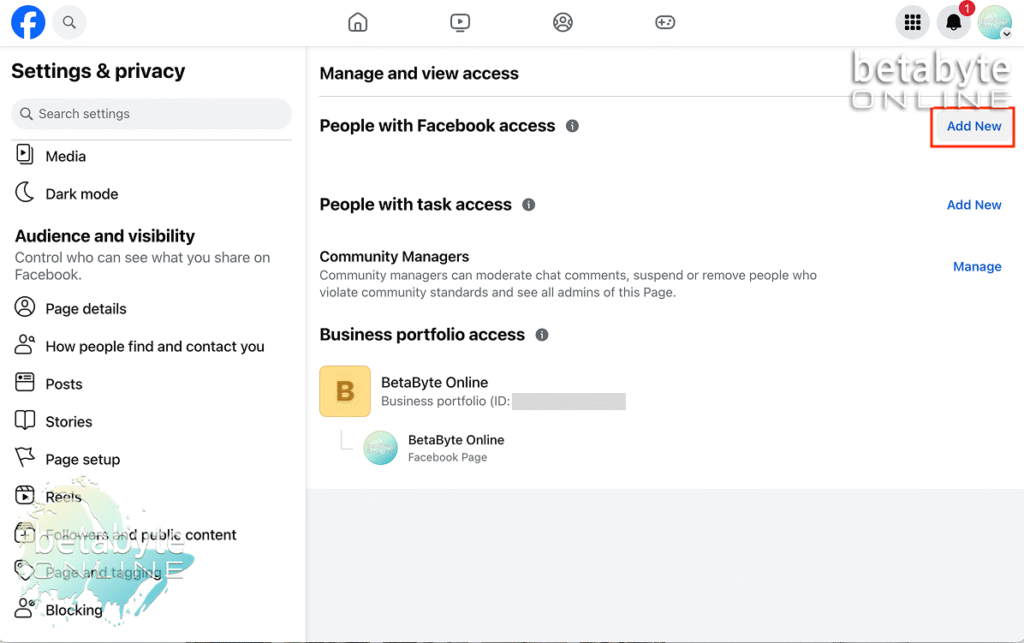
Note: This adds someone’s personal Facebook account as an admin.
If you want to add someone using a work/professional email or someone who does not want to use their personal Facebook account, you’ll need to add them as a Partner through your Meta Business Portfolio.
For more information on how to do that, check out our Betabyte Online article here: [insert link]
Review Facebook’s pop-up
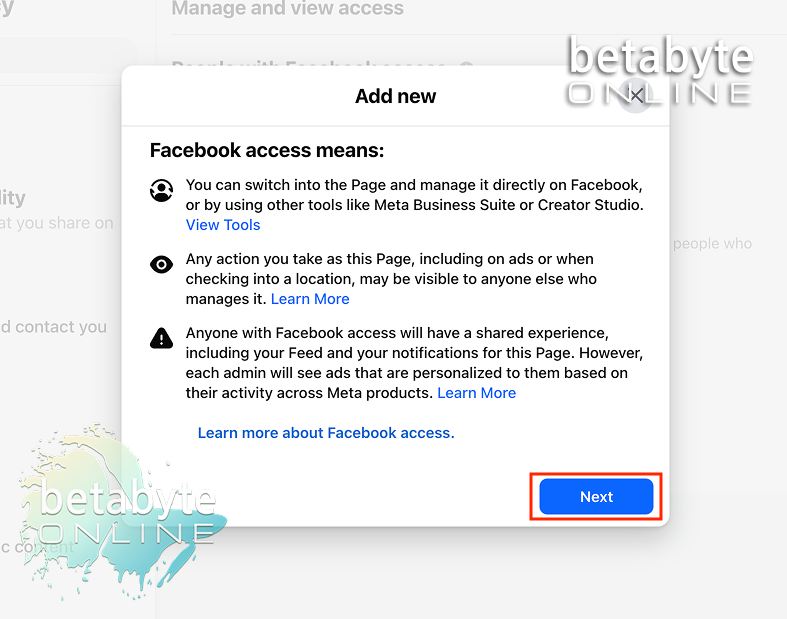
Facebook will give you a popup explaining what admin access means. You can read it, but since you’ve got Betabyte Online guiding you through this, you can go ahead and select Next.
Search for the person you want to add
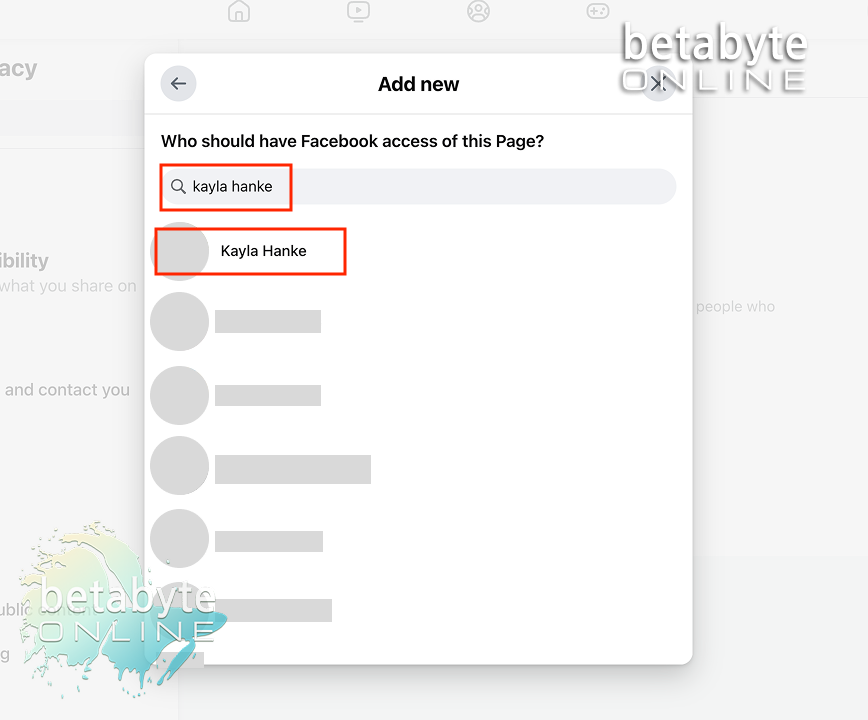
Type the name of the person you’d like to add.
If they have a common name, it helps to know their profile picture.
You can also search by the email address tied to their Facebook login.
Select the correct profile
Once you’ve identified the person, select their name.
Choose their level of access
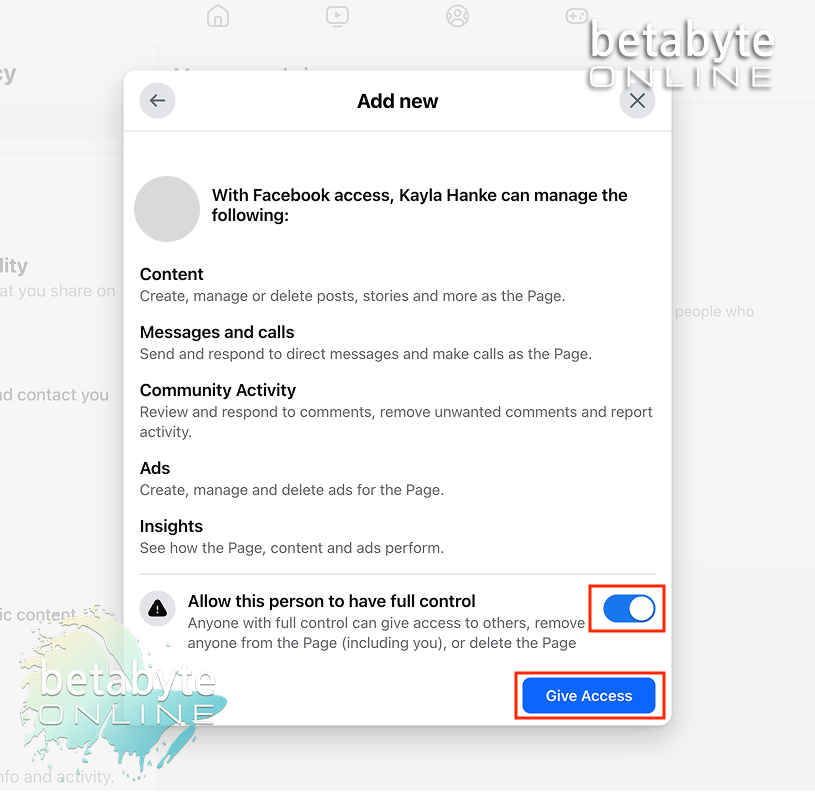
If you assign Full Access, the person is able to manage and control all admin-level settings for the page, including changing roles, publishing, managing connected assets, and overseeing page settings.
If you assign Partial Access, their capabilities are more limited and you may need to upgrade their access later.
Select the level of access you want. To assign full access, toggle Full Access to ON (or “Manage”). Review everything, then select Give Access.
Confirm your identity
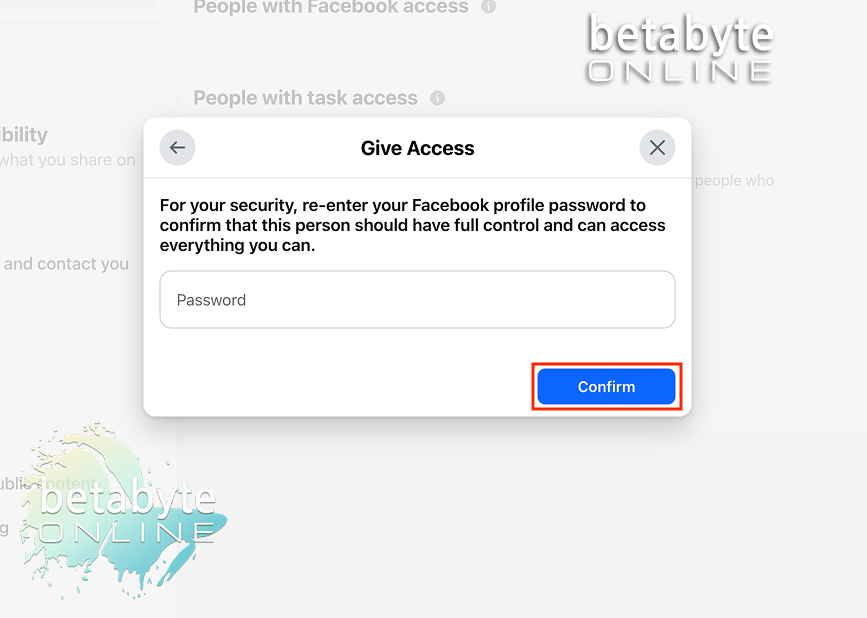
Facebook will prompt you to enter your password. Enter it, then select Confirm.
Verify the admin invitation
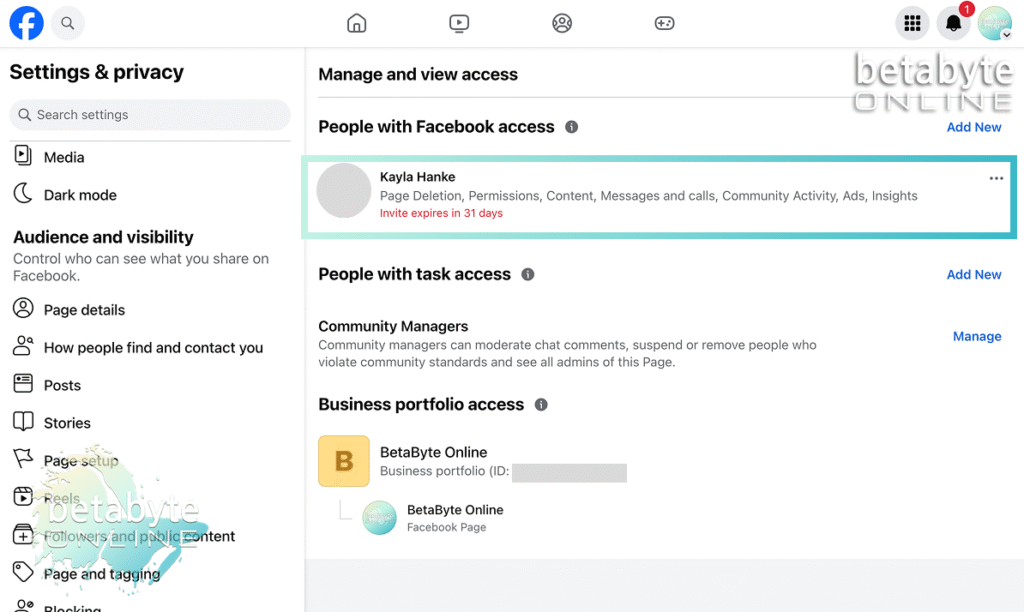
You’ll be returned to the Page Access settings page. You should now see that this person has been invited to be an admin.
They cannot act as an admin until they accept the invitation.
The invitation expires in 31 days, so remind them to accept it.
Confirm they have accepted
Once they accept, you’ll see them listed under “People with Facebook Access.”
Nice work — you did it! We hope we’re the ones you just added as your new social media managers. If not yet, we’d love to help you boost your online presence anytime.