

Sometimes, it’s essential to ensure you have full control of your Meta Business Portfolio. Full control allows you to manage users, assign or remove partner access, control your business assets, and maintain overall security of your online presence. This is especially important if you’re adding new team members, onboarding agencies, or simply want to make sure you retain ownership and authority over your business pages.
You might need full control if you are trying to:
- Add or remove people from your organization
- Add or remove partner access for agencies with partial or full control
- Manage critical business assets
Here’s how to verify that you have full ownership of your page and business portfolio in Meta Business Suite.
Log Into Meta Business Suite
First, log into your Meta Business Suite and go to the main dashboard. You can access this at business.facebook.com.
Double-check that the business you want to verify is selected in the upper left-hand corner if you manage multiple pages.
Access Settings
Then go to Settings in the left-hand menu.
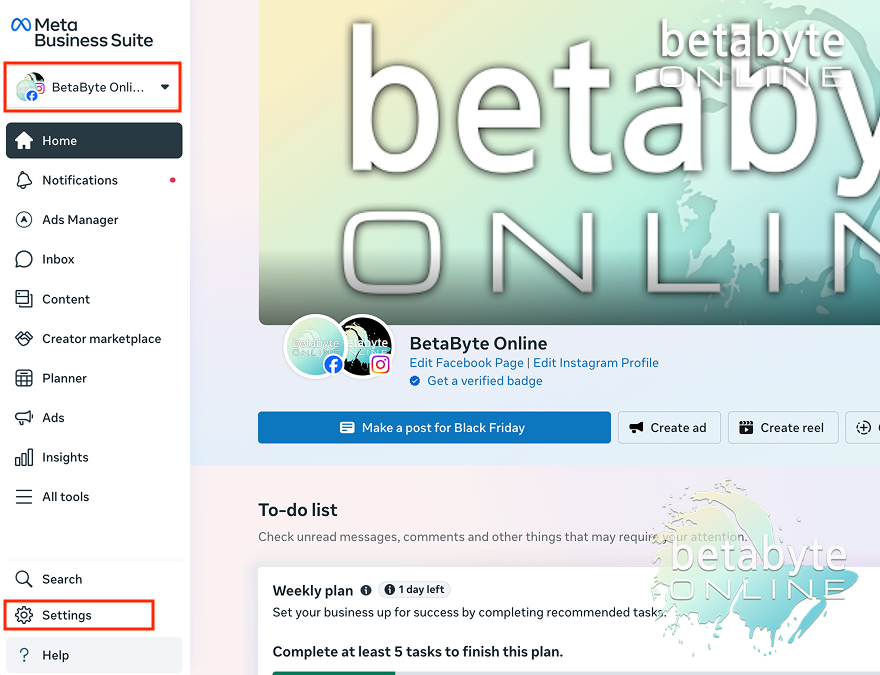
This will bring you to your business portfolio page and show a list of people who have access to the page. If you’re taken to another area of the business portfolio, check the secondary menu on the left side of the screen and navigate to Users > People to view page access.
Verify Your Own Access
Look for your name in the list. It should be highlighted with (You) to indicate it is your account.
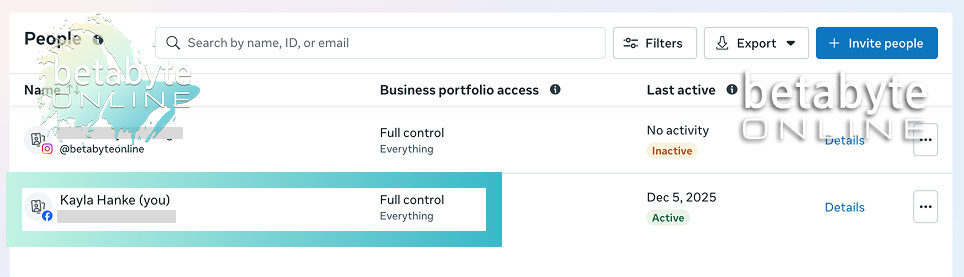
Under the column Business Portfolio Access, make sure it says Full control.
What if it does not say full control?
It could show as Partial access, Limited access, or other access levels. In that case, you’ll need to reach out to the page admin or the person who has full control to request full access. You can also request full control directly through the Business Suite portal.
How to Request Full Control if You Don’t Have It
Identify a Member With Full Control
Find the organization member who currently has full control access.
Request Access
Reach out directly to that member and request that they grant you full control.
You can also submit a request through the portal to the person with full access in your organization.
How to Assign Full Control to Another Member (If You Already Have Full Access)
Select the Member
Identify the member in the user list whom you wish to grant full access.
Open Permissions
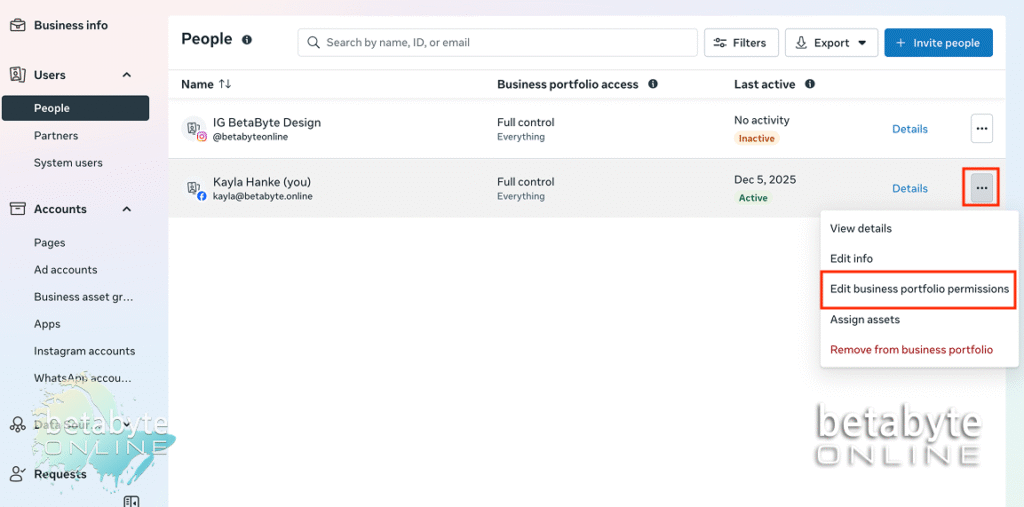
Click the three dots next to their name and select Edit Business Portfolio Permissions.
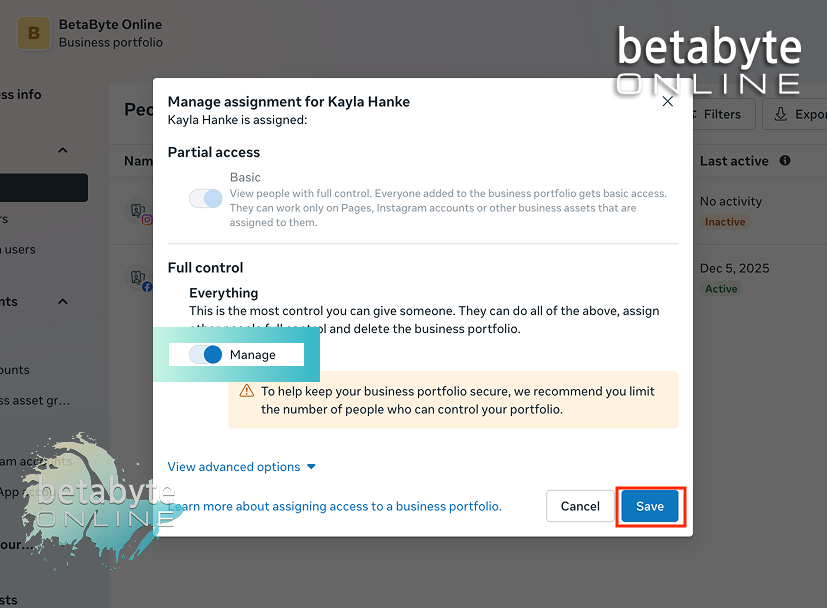
Toggle Full Control
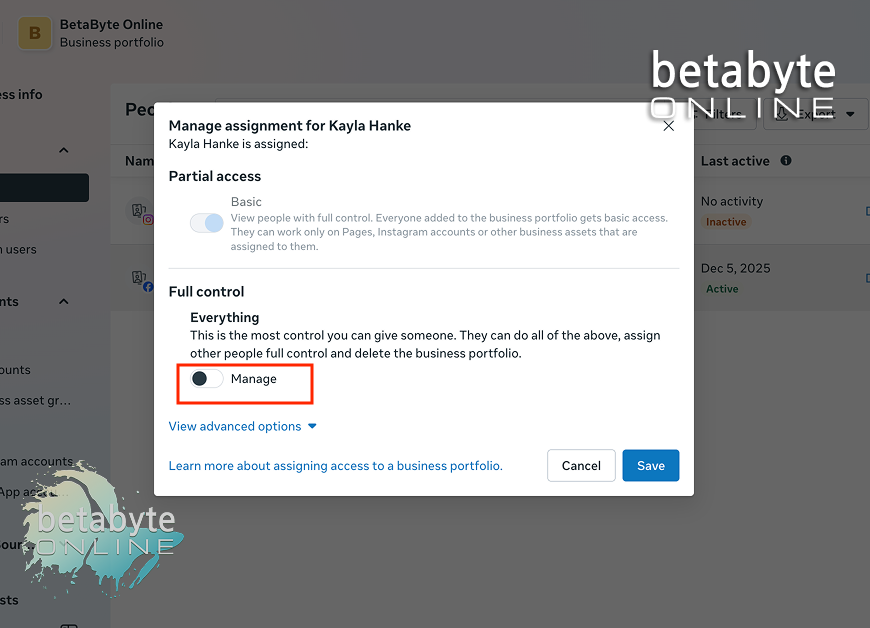
Look under the Full Control heading.
There will be a toggle switch under Everything. Make sure the toggle is set to ON or MANAGE.
Save Changes
Select Save.
The team member will now have full access to the business portfolio.
Capabilities of Full Access
Full access allows a member to:
- Manage all business assets
- Add or remove users
- Switch into the page to manage everything on Facebook and in Meta Business Suite
- Remove others from the page, including themselves in some cases
- Delete the page if necessary
Note: Full access should only be granted to trusted members due to these extensive permissions.
Full Control in Meta Business Suite is Serious Business!
Verifying and managing full control in Meta Business Suite ensures that you maintain ownership, protect your business assets, and control who can make changes.
If you have questions or need help managing your online presence, reach out to BetaByte Online. We’re happy to guide you or even take the reins on your digital efforts if you prefer.
What If the Person Doesn’t Appear in Your List?
Check out our article: [How to Assign Access to Your Meta Business Portfolio](insert link here).