
Managing who has access to your Facebook business page is critical for security, organization, and maintaining a strong online presence. Whether you’re onboarding a new team member, rotating agencies, or simply cleaning up old permissions, knowing how to view and manage access ensures your page stays safe and your brand stays consistent. BetaByte Online is here to help you navigate these settings with confidence.
Log into the Facebook business page you want to manage.
You can do this by logging into your personal Facebook account — as long as you already have admin access.
If you’re unable to access the page, contact the current page admin and ask them to follow these steps to add you as an admin so you’re able to manage admin access yourself.
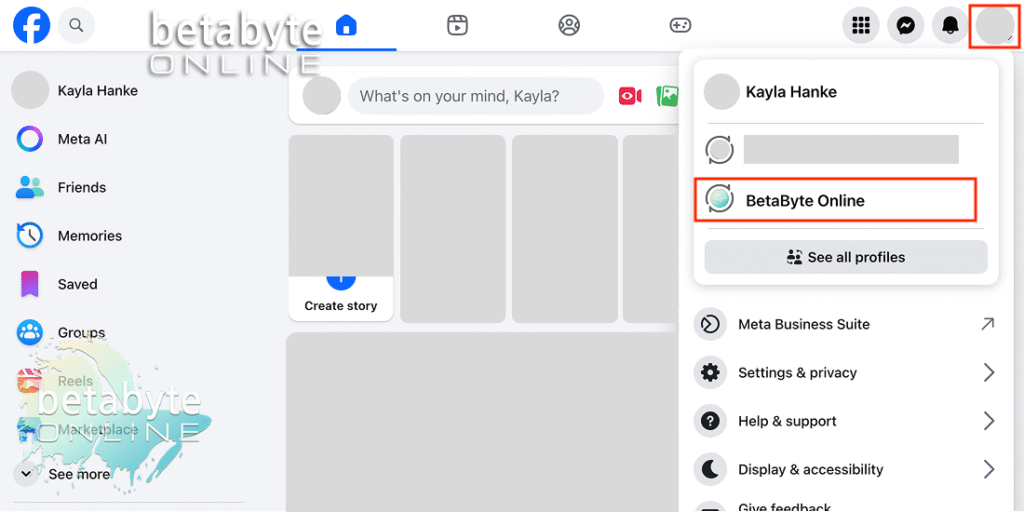
Select your profile arrow
When you’re logged into your personal Facebook page, select the arrow next to your profile photo in the upper right corner.
Note: These instructions are for the desktop version of Facebook. On mobile, things may look slightly different.
Switch into the correct page
Select the page you’d like to manage to ensure you’re logged in as that page.
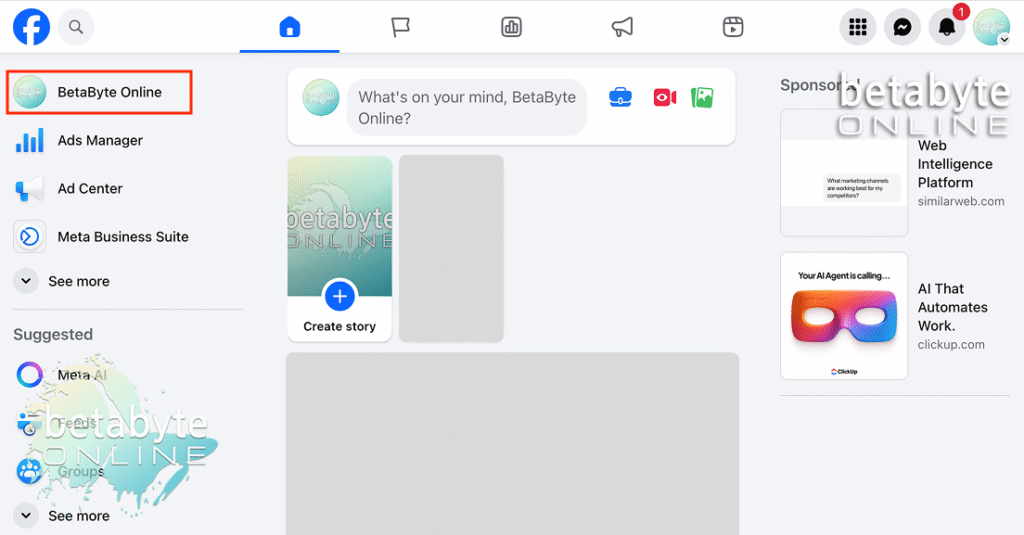
Go to the business page dashboard
Once you’re on the page, select the business page name in the upper-left corner.
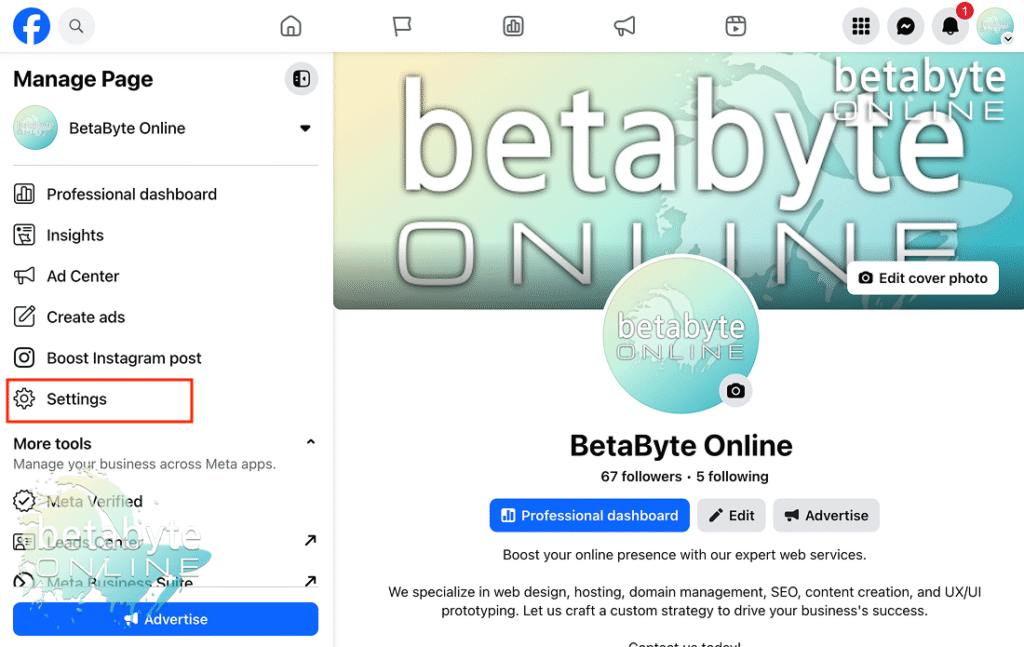
Open Settings
From here, go to Manage Page > Settings.
Go to Page Setup
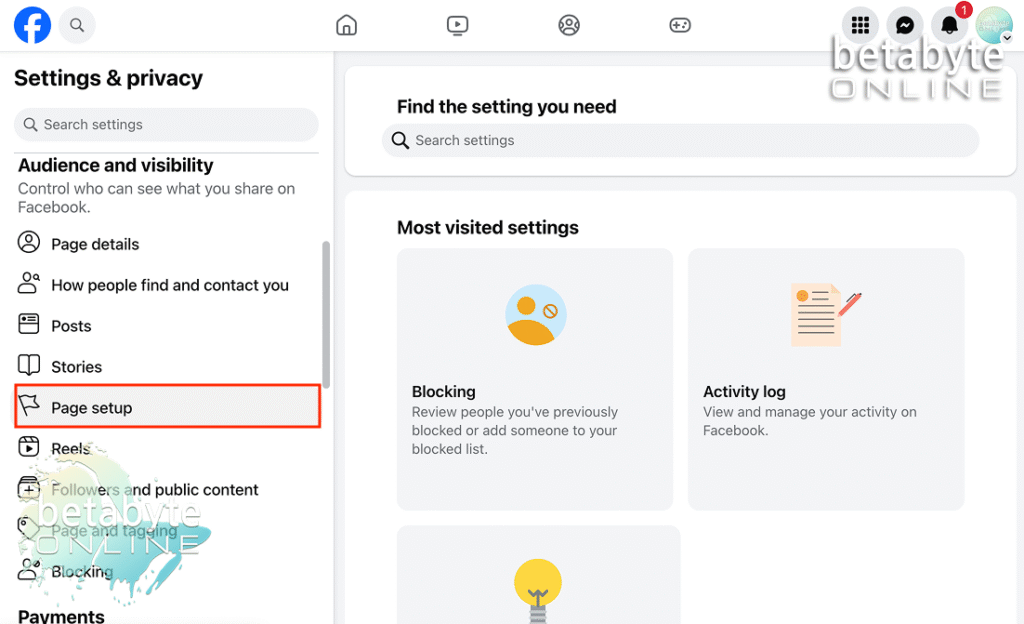
In the left panel, scroll to Audience and Visibility, then select Page Setup.
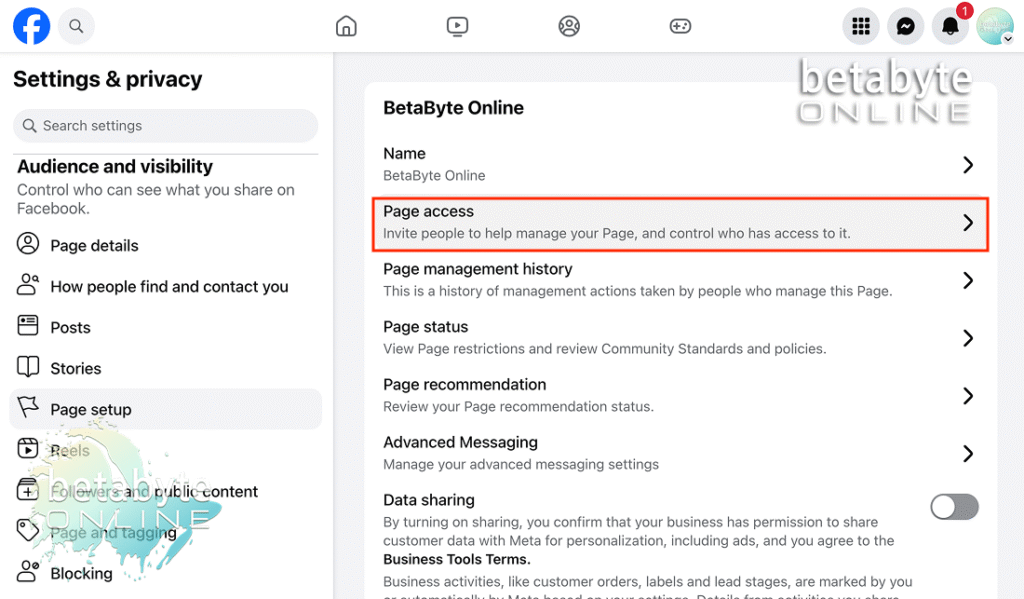
Select Page Access
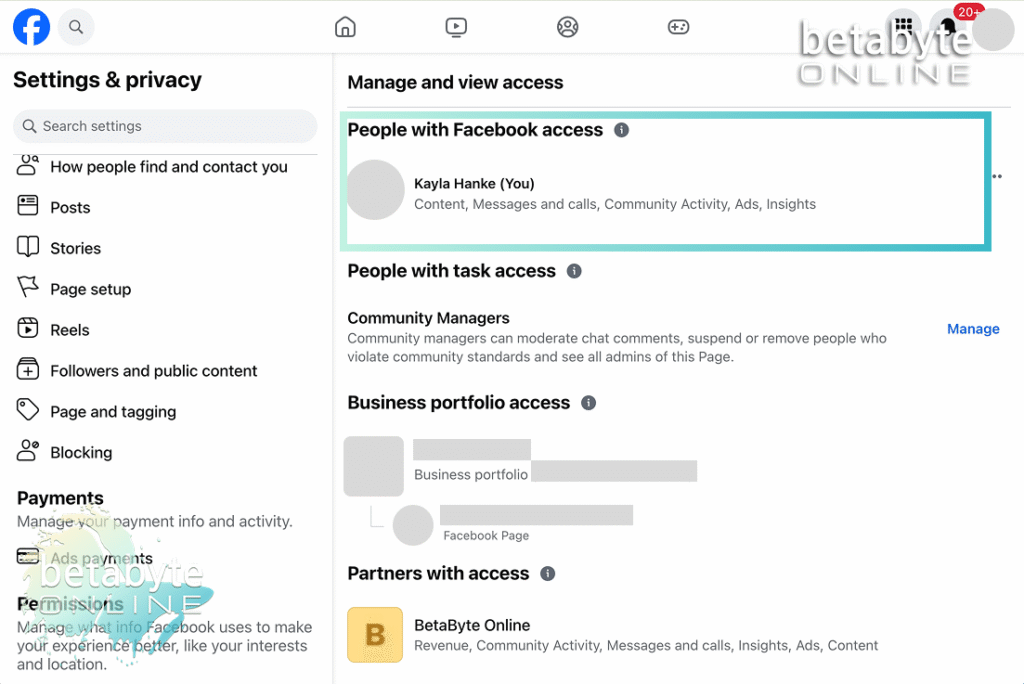
This is where you can invite people to help manage your page and control who has access. This is also where you can add or remove admin access.
Keep Your Page Secure and Organized
It’s important to periodically review who has access to your Facebook business page. Over time, team members leave, agencies change, or contractors finish their work, and keeping old access in place can pose a security risk. Cleaning up admin and editor permissions ensures that only authorized users can make changes to your page, protecting your content, ads, and reputation.
Proper organization of page access also benefits your overall online presence and SEO. When fewer, more relevant people have control, it reduces the chance of accidental errors and helps maintain consistent branding across your page. Additionally, if you’ve assigned partner access through your Meta Business Portfolio, these settings are viewable under the Business Portfolio Access category. Even if someone isn’t listed under People with Facebook Access, they may still have permissions via the portfolio, allowing them to make changes to your page as needed.
Keeping both Facebook Page Access and Meta Business Portfolio access organized ensures that your team is set up for success. At BetaByte Online, we can help you review these settings, assign partner access, and maintain a secure and well-managed page. Reach out if you have questions or encounter any issues following this guide — we’re always happy to help.