
How to Change the Name of Your Facebook Business Page
If you’ve rebranded or want to make a minor update to your business page name, follow these steps to ensure everything is done correctly and safely.
Sign in to Your Business Page

Go to your Facebook business page. Make sure you are signed in to your business account profile. If you’re not signed in as the business, you won’t be able to make changes.
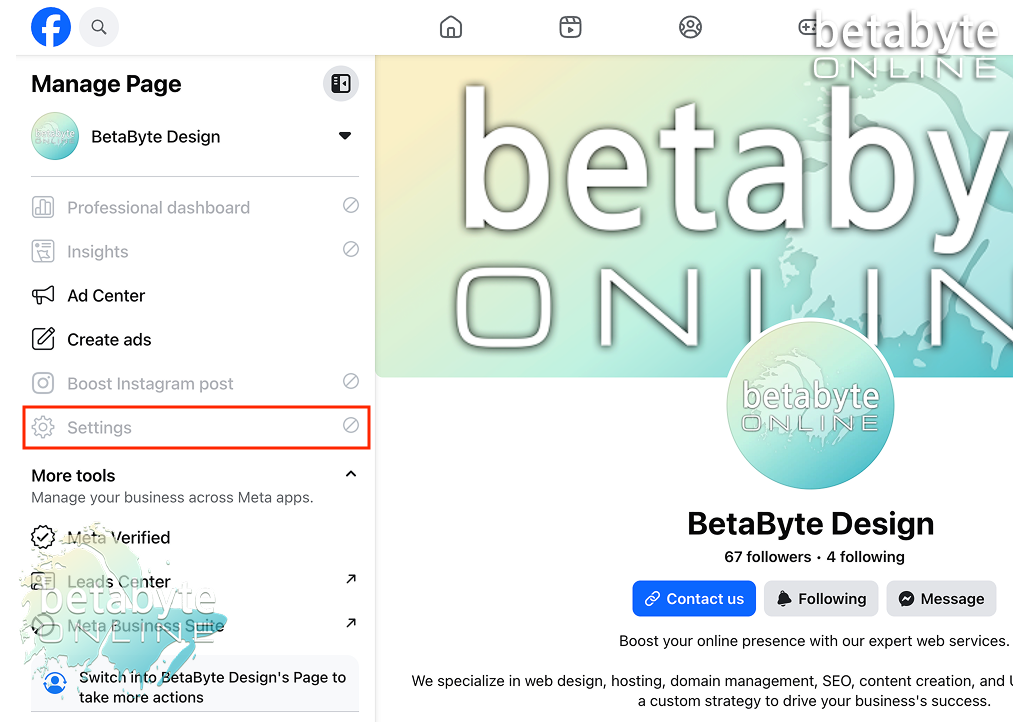
If you try to access settings while signed into a personal profile, a popup will prompt you to switch to your business account. No need to backtrack — everything you need is right there.
Open the Settings Menu
If the left-hand menu is collapsed, expand it.

Click Settings in the left-hand menu.
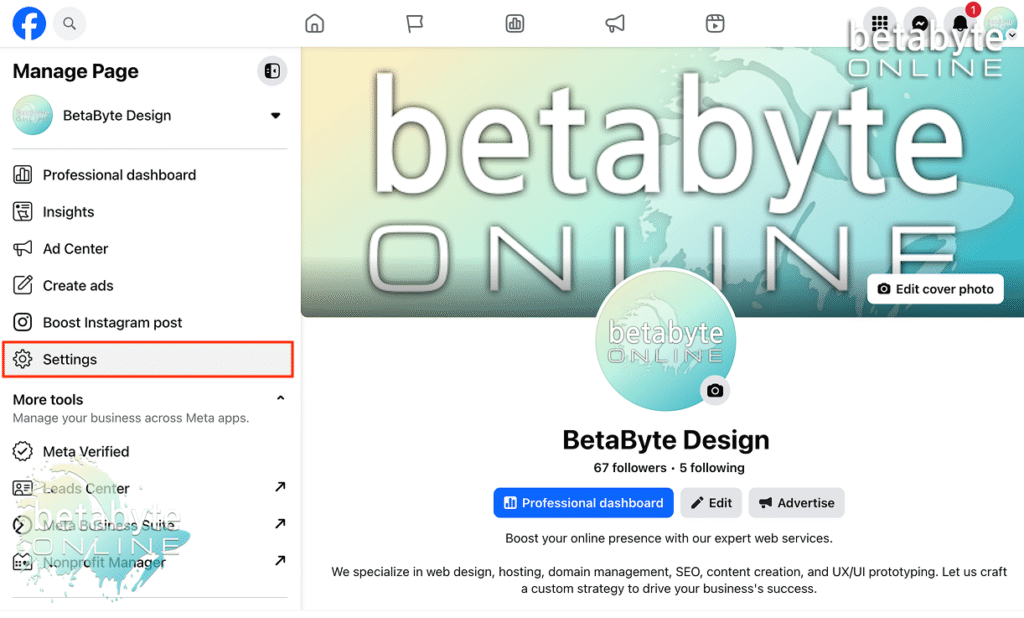
If you don’t see it, click Settings & Privacy first, then select Settings.
Note: If “Settings” appears grayed out, it means you’re either not signed in to the business profile or you’re not acting as the page admin. Switch profiles when prompted to continue.

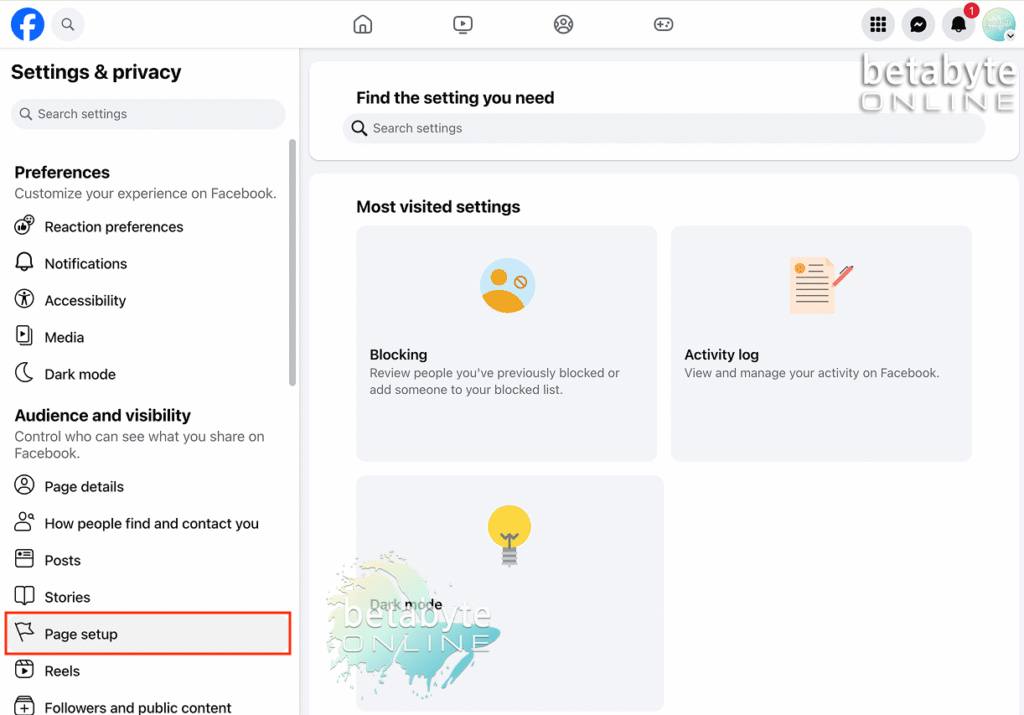
This will bring you to the “Settings and Privacy” page.
Navigate to Page Setup
Look under the Audience and Visibility heading, which controls who can see what you share on Facebook.
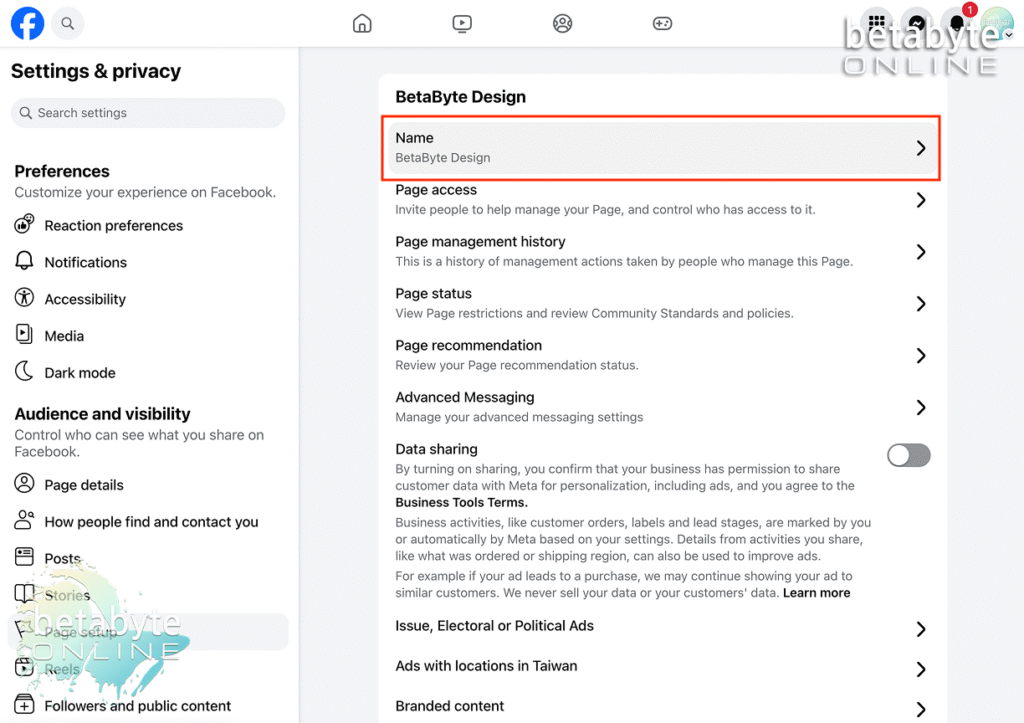
Scroll to Page Setup and select it.
Edit Your Page Name
Click the arrow next to your current page name.
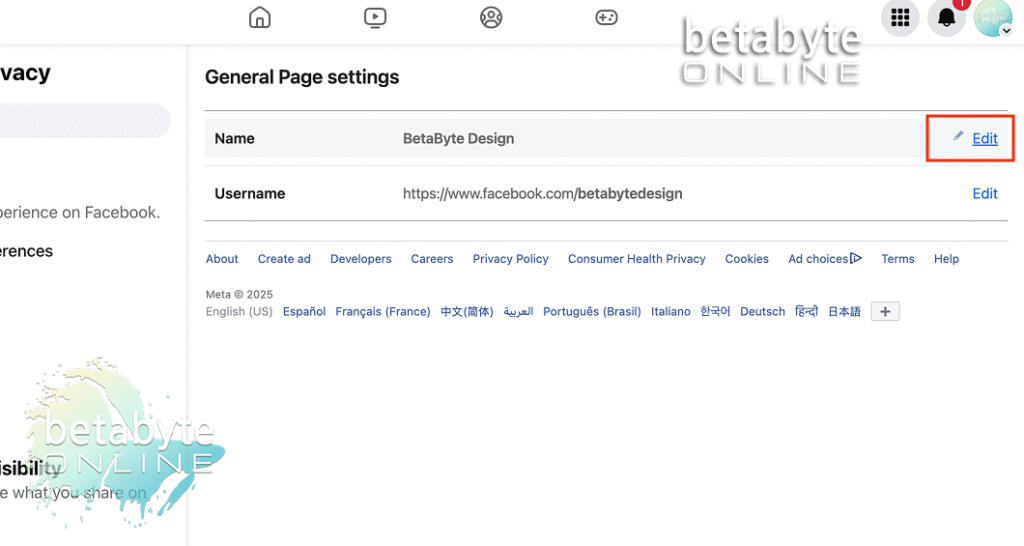
Select Edit next to the name field.
Enter your new page name.
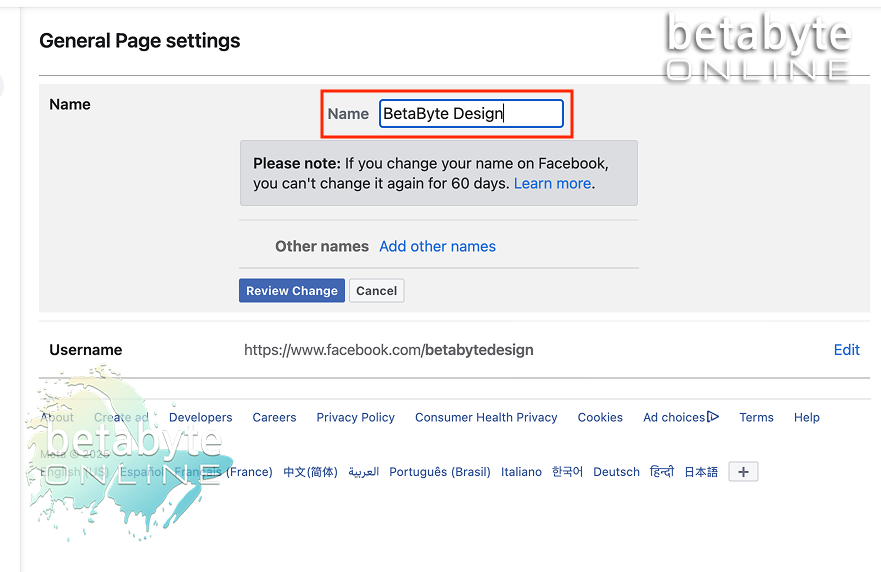
Note: Facebook limits name changes to once every 60 days. This policy is a security measure to prevent impersonation or confusion. Double-check your spelling and accuracy before submitting.
Optional – Add Other Names
Facebook allows you to add alternate or former page names. This is helpful if:
- Your new name is similar to the old name
- People might still search for your business using the previous name
- Adding an alternate name ensures users can find you during a subtle rebrand
Review and Confirm
Click Review Change.
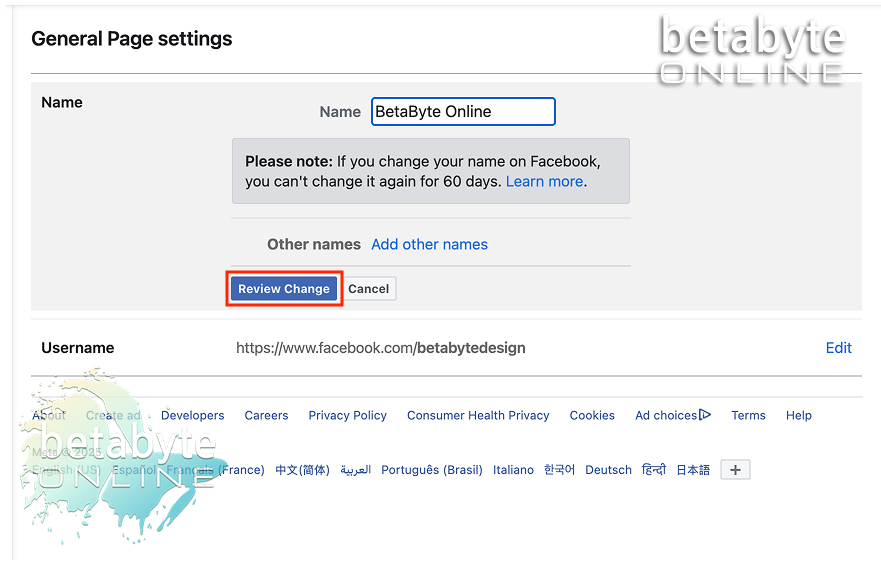
Enter your password if prompted.
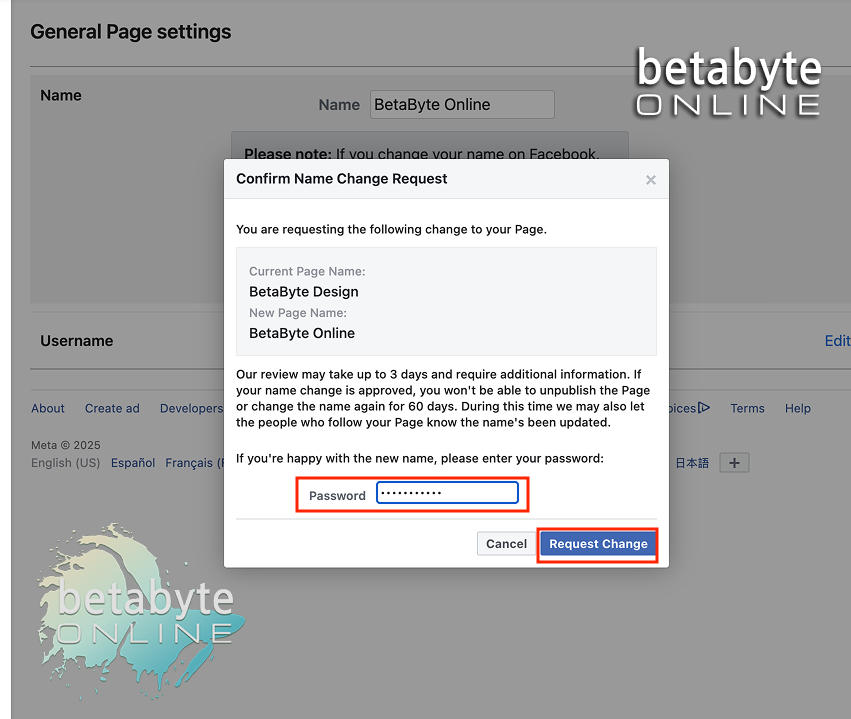
Click Request Change.
Note: Facebook may take up to 3 days to approve your request. They might also ask for proof of your business identity, reasons for the name change, or supporting documents if the name change is significant or legally verified.
Wait for Updates
After submitting, you’ll return to the general settings page. The new name might not appear immediately — this is normal.
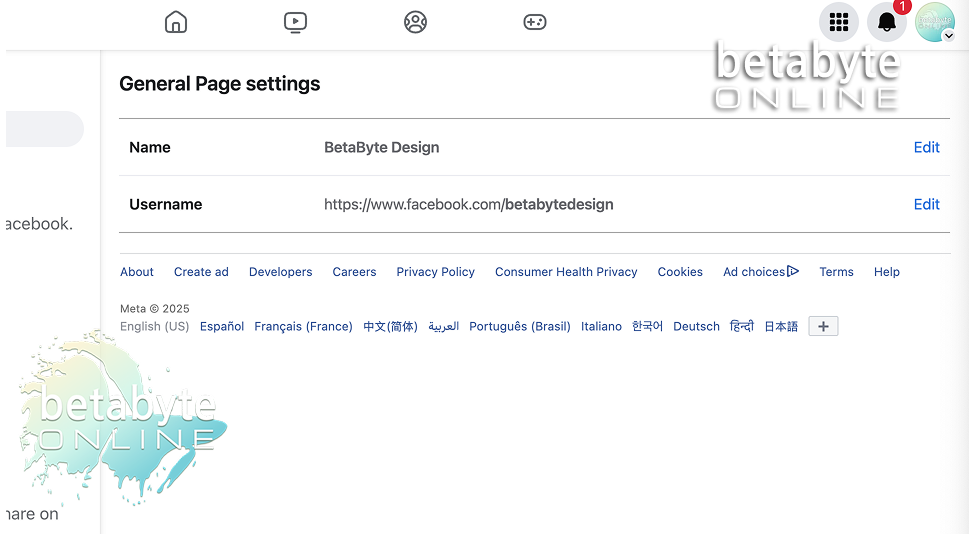
In many cases, the name updates within an hour. Occasionally, it may take up to 3 days for approval. In this case, we were able to view the updated business page name within 15 minutes of submitting the change request.
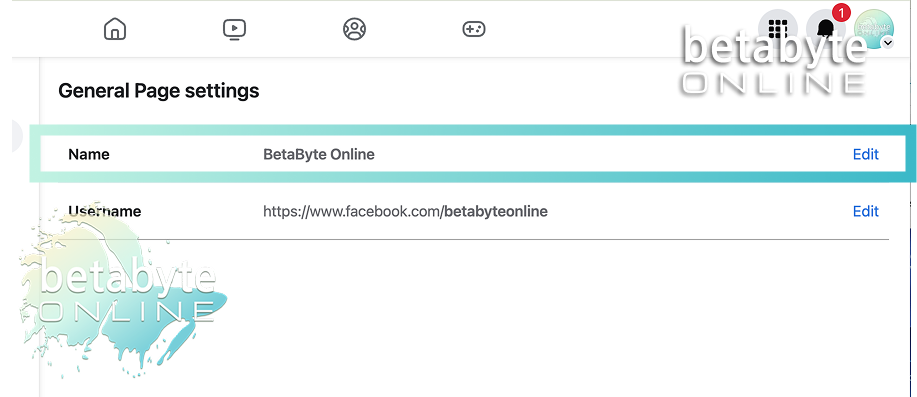
Celebrate Your Updated Page
Congrats! Your Facebook business page now reflects your new branding.
For more tips on improving your online presence, choosing the right username, or optimizing your Facebook page for search, check out our article: (insert article name here)
If you need extra guidance or run into any issues, you can always reach out to us at BetaByte Online. We’re happy to help!