
DKIM keys are a crucial part of any email setup for your website, regardless of where you host your site or where you bought your domain. Whether your site is on WordPress, Wix, Squarespace, Shopify, Weebly, or Webflow, and whether your domain is from Namecheap, GoDaddy, Network Solutions, Bluehost, Hostinger, or Google Domains, DKIM ensures your emails are authenticated and trusted by email providers like Google, Microsoft, and Yahoo. Without DKIM, even legitimate emails can be flagged as spam or fail to deliver entirely.
If you’d like more details, you can read our article: What is a DKIM Key
For the purposes of this guide, we’ll walk you through generating a DKIM key and installing it with your domain registrar, assuming you’re using Google Workspace as your email provider. If you’re using another mail service, you’ll need to follow that provider’s instructions.
Before you start, make sure you meet these criteria:
- You are signed in as a Super Administrator in Google Workspace. If you need help assigning someone as a super admin, check out our article here.
- You have waited at least 24–72 hours after enabling Gmail for your registered domain. DKIM cannot be created until this period has passed.
Once these criteria are met, you’re ready to move forward.
Sign in as a Google Workspace Administrator
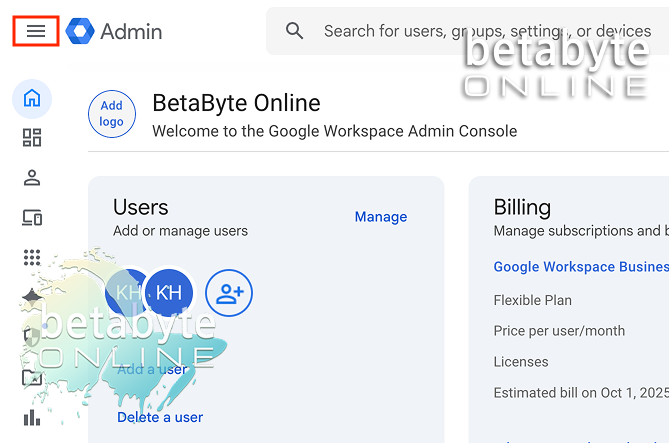
Open the Settings Menu
Click the three-line menu in the upper-left corner of your Admin Console.
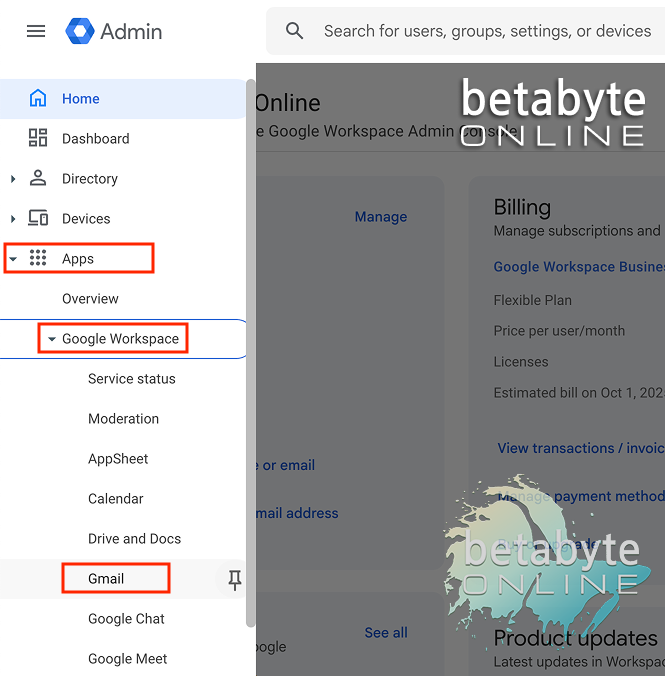
Navigate to Gmail
Go to Apps > Google Workspace > Gmail.
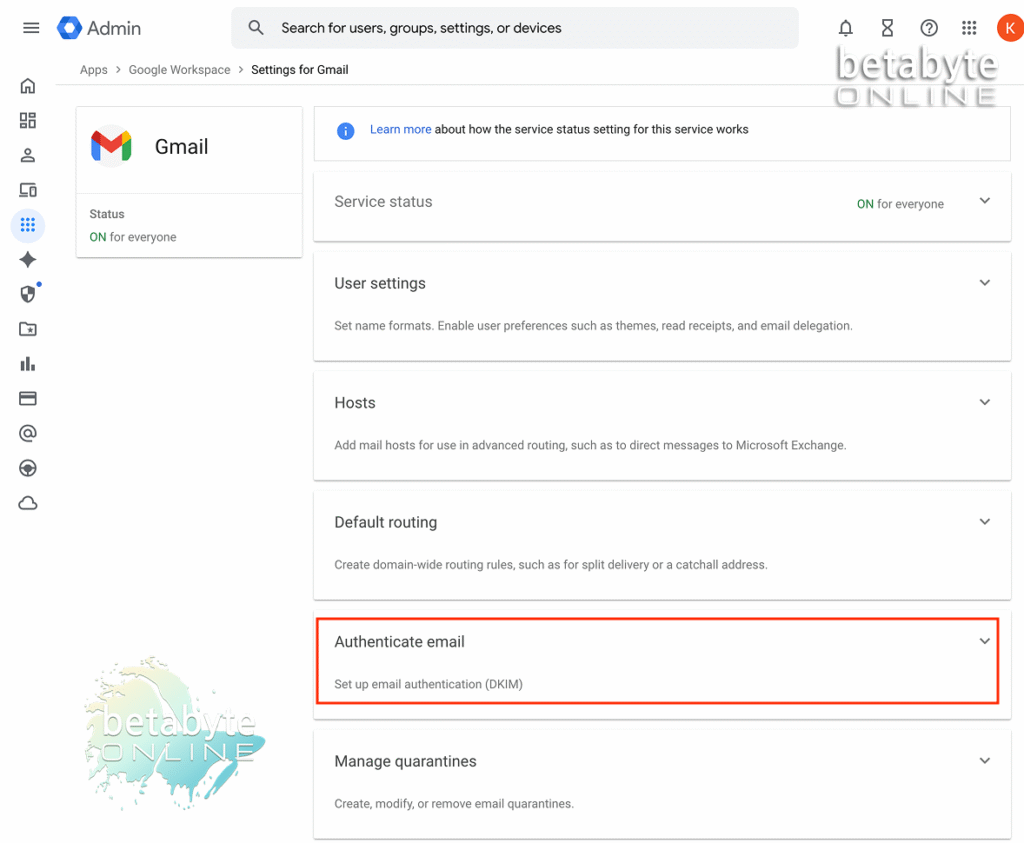
Authenticate Email
Click Authenticate Email.
Select Your Domain
In the selected domain menu, choose the domain where you want to set up DKIM.
(For example, you might want to set up DKIM for a marketing subdomain separate from your main company domain if you run automated campaigns or newsletters.)
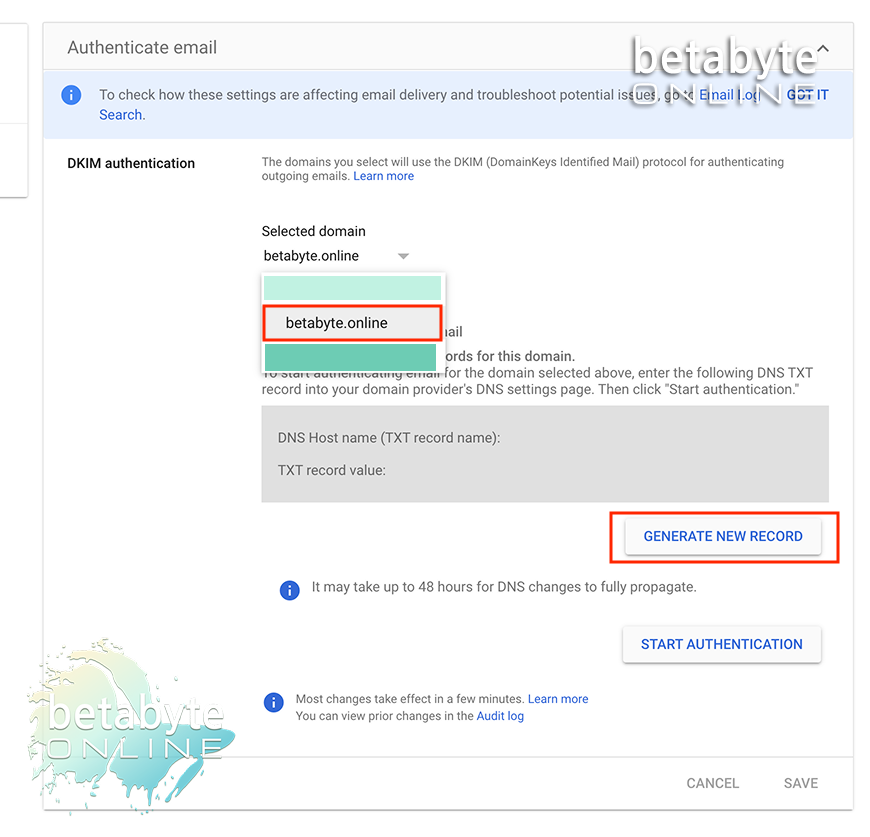
Generate a New DKIM Record
Important Caution
WARNING: Do not generate a new record if there is already a DKIM set up. If you are troubleshooting email issues, confirm with your tech support (sometimes, that’s me!) before generating a new key. Creating a new DKIM record when one already exists can overwrite the existing values, which could break email authentication across your domain. Always double-check before proceeding.
Choose DKIM Settings
In the “Generate New Record” box, select your DKIM key length. Typically:
- 1024-bit is safe for most domains and widely supported.
- 2048-bit is more secure but only works if your domain host allows longer TXT records.
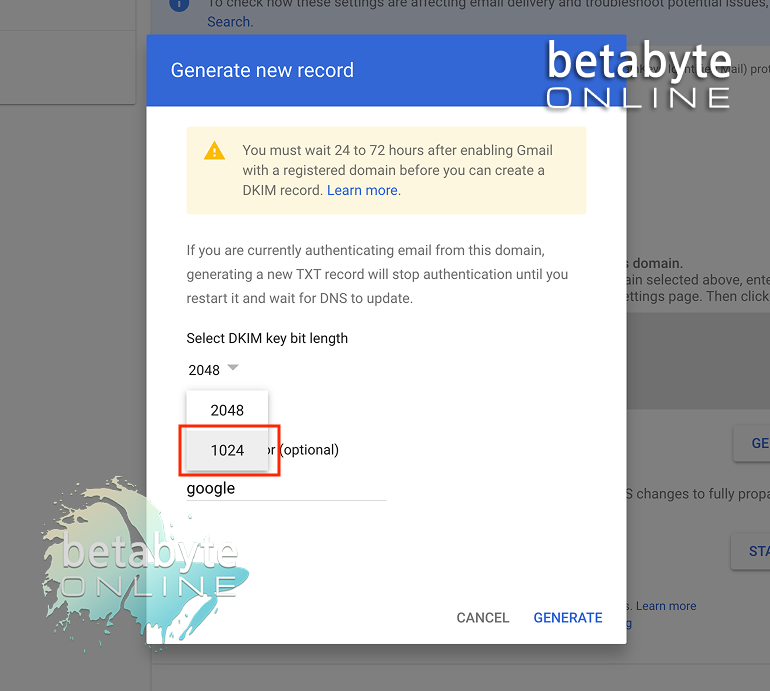
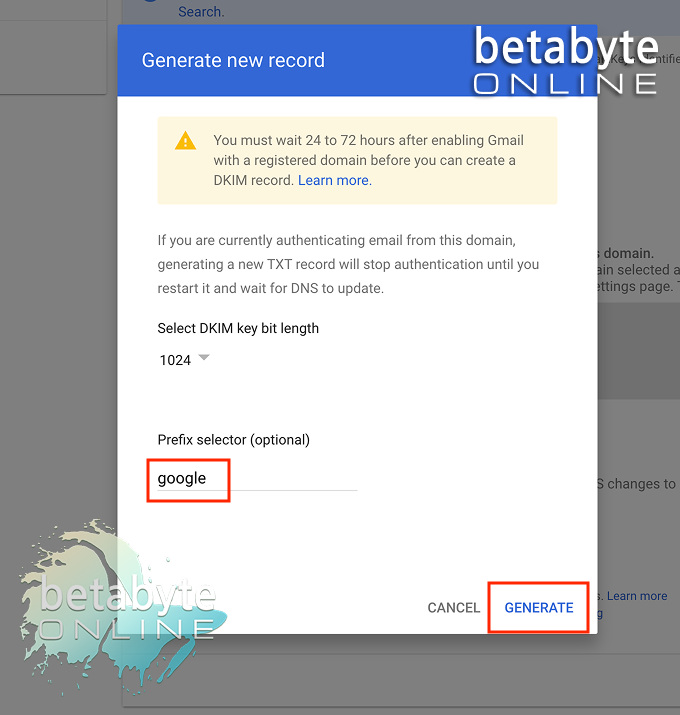
The default prefix selector for Google Workspace is google. Only change this if your domain already uses a DKIM key with this prefix.
Just to simplify: if you’re unsure, select 1024-bit with the default google prefix.
How to Know if Your Domain Supports 2048-bit Keys
Whether you can use a 2048-bit key depends on your DNS provider and the maximum TXT record length it supports. Some older providers may only allow 1024-bit keys. Common hosts that generally support 2048-bit DKIM include:
- Cloudflare
- Namecheap
- GoDaddy
- DreamHost
- Hurricane DNS
- EasyDNS
- DNS Made Easy
- Twilio SendGrid
Virtually all providers support 1024-bit keys, and this is usually sufficient for most domains.
Generate
Click Generate. You will now see your new DKIM record in the Google Admin Console. Under “Status,” it may say Not Authenticating Email, which means the key exists but hasn’t been added to your domain’s DNS yet.
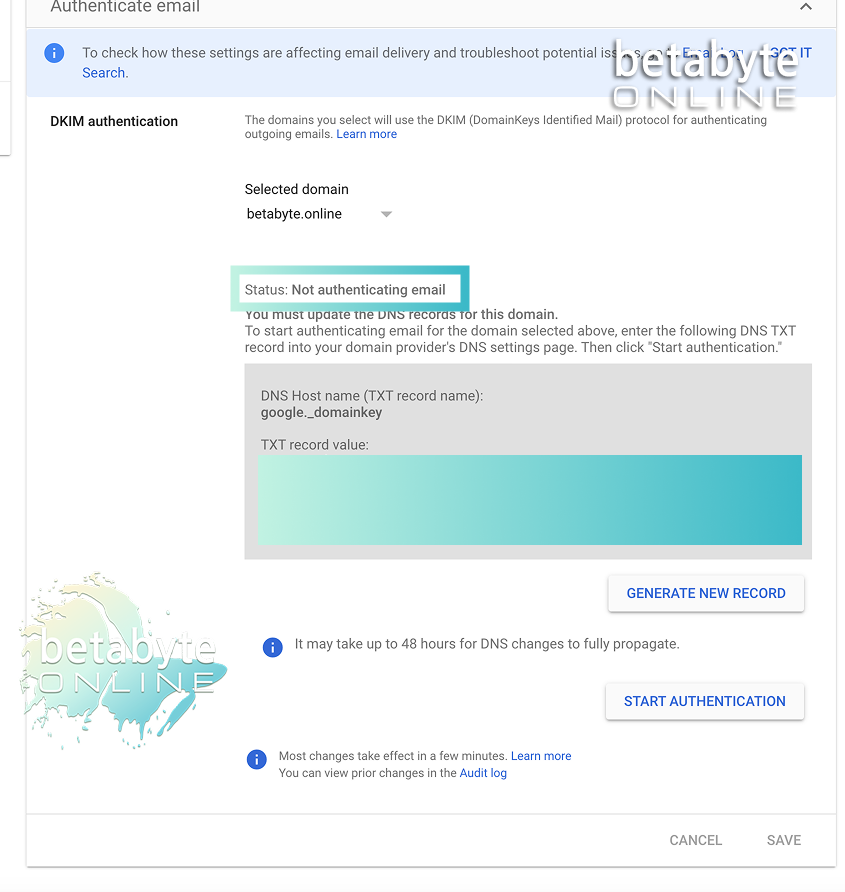
Congratulations! You’ve successfully generated a DKIM key for your Google Workspace account.
Retrieve Your DKIM Key
Access Your DKIM Key
If you just need the DKIM key to provide to a tech support person (sometimes, that’s me!), follow these steps:
Log into Google Admin Console
Open the settings menu (three lines) in the upper-left corner.
Navigate to Gmail DKIM Settings
Go to Apps > Google Workspace > Gmail.
You should now see the DKIM key for your Google Workspace authentication.
(Again, you will only see these settings if you have super administrator privileges. If you need access, contact your Google Workspace coordinator. If you’re totally lost, reach out to us at BetaByte Online! We’ll guide you through it so you can focus on running your business.)